Normally, removing an app means opening the Control Panel's Apps & Features list, picking the entry, and clicking Uninstall. But sometimes that entry simply isn't there, even though the program is clearly still on your drive. This guide walks through several ways to get rid of software that Windows won't let you uninstall the normal way.
Options for removing a program missing from Control Panel
- Look for an uninstaller inside the program's own folder
- Try Revo Uninstaller Pro
- Use the Windows Settings app
- Remove it through the Registry
- Shorten the registry key name
- Reinstall the software to get access to its uninstaller
Look for an uninstaller inside the program's own folder
Most software lands in C:\Program Files or C:\Program Files (x86), and inside that folder you'll typically find an uninstall.exe file. This is the same script Control Panel would normally trigger for you.
When an app doesn't show up in Control Panel, browse to its installation folder directly and run that uninstall.exe file yourself. In most cases this removes the program just as effectively.
Try Revo Uninstaller Pro
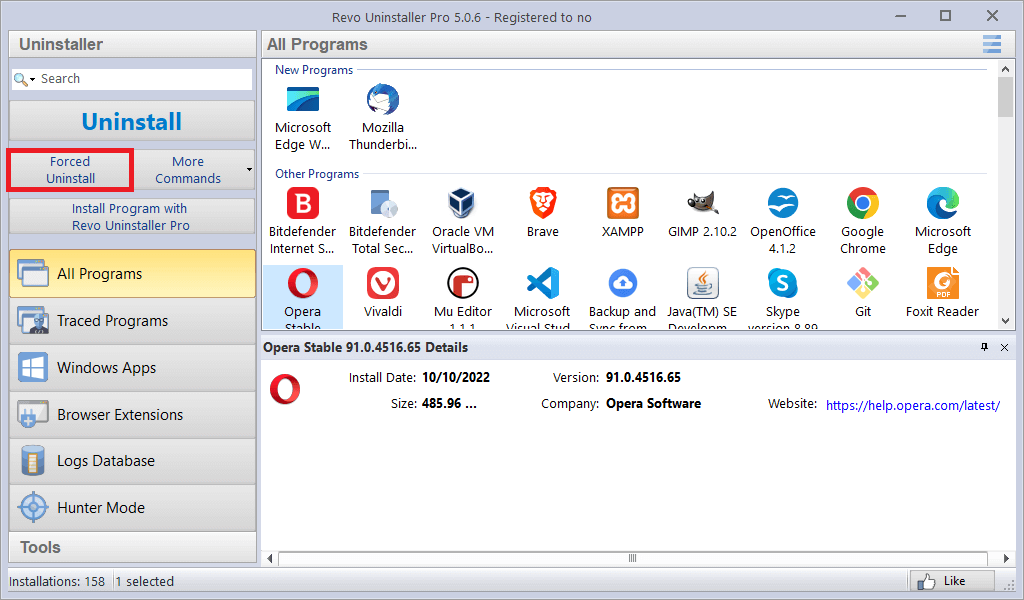
Revo Uninstaller Pro gives you two ways to handle software that's missing from the standard list:
- Run a forced uninstall. This option is meant for stubborn leftovers or programs that no longer appear in Control Panel.
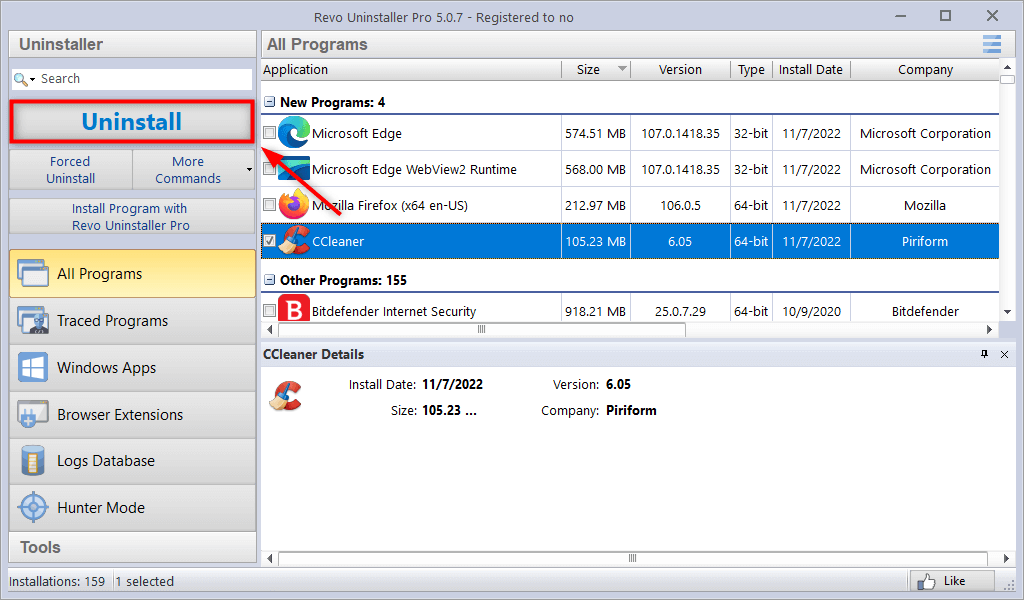
- For software that's still detected normally, the standard uninstall process works just fine.
Use the Windows Settings app
Windows 10 and 11 also let you manage installed software from Settings:
- Open the Start menu and go to Settings.
- Select Apps.
- Choose Apps and Features.
- Locate the program, click the three dots next to it, and choose Uninstall.
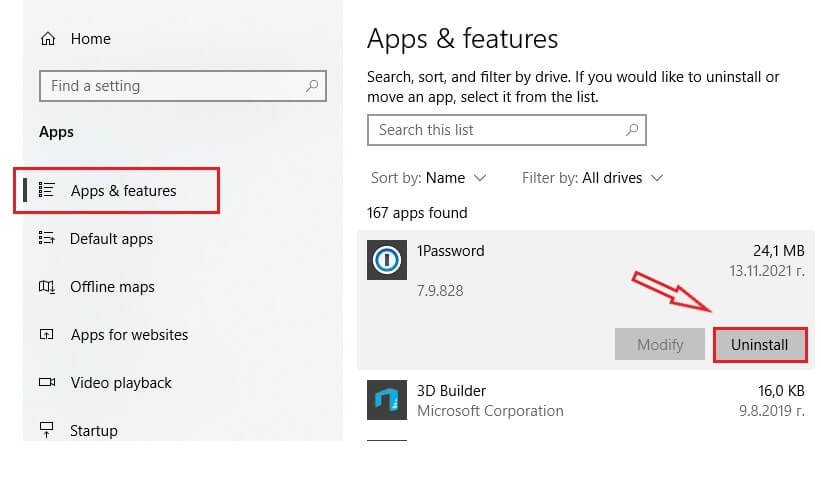
This path catches many apps that don't show up under the older Control Panel view.
Remove the program through the Registry Editor
- Press Windows Key + R to bring up Run, type
regedit, and press OK.
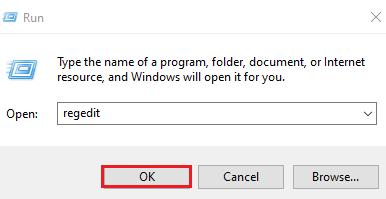
- Browse to this key:
HKEY_LOCAL_MACHINE > SOFTWARE > Microsoft > Windows > CurrentVersion > Uninstall
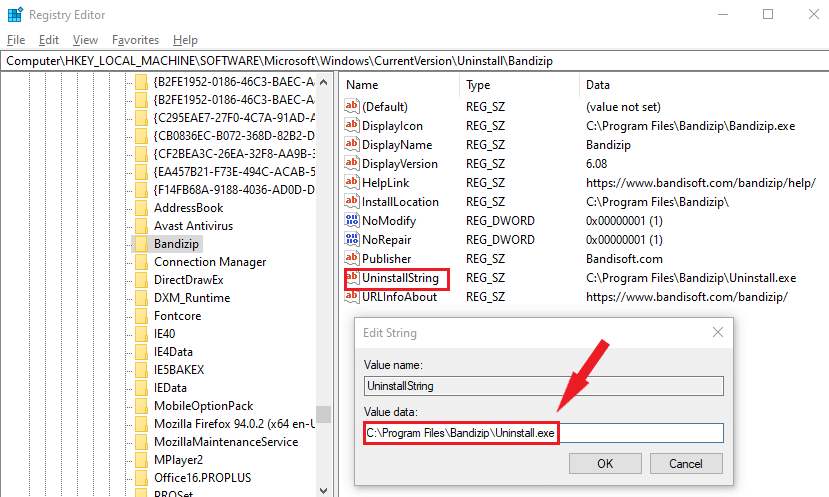
- Each subkey here corresponds to an installed program. In the right-hand pane, look for a value named UninstallString and open it.
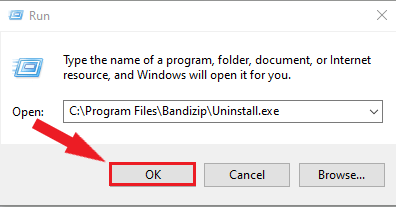
- Copy the string, open Run again, paste it in, and hit OK to launch the uninstaller directly.
Shorten the registry key name
Occasionally, an application name longer than 32 characters is the actual reason it never shows up in Control Panel, since Windows can misread overly long entries.
Here's how to work around it:
- Go to HKEY_LOCAL_MACHINE\SOFTWARE\Microsoft\Windows\CurrentVersion\Uninstall.
- Find the subkey belonging to the program in question.
- From the Edit menu choose Rename, and shorten the key itself to under 60 characters.
- Double-click the DisplayName value and trim it down to 32 characters or fewer.
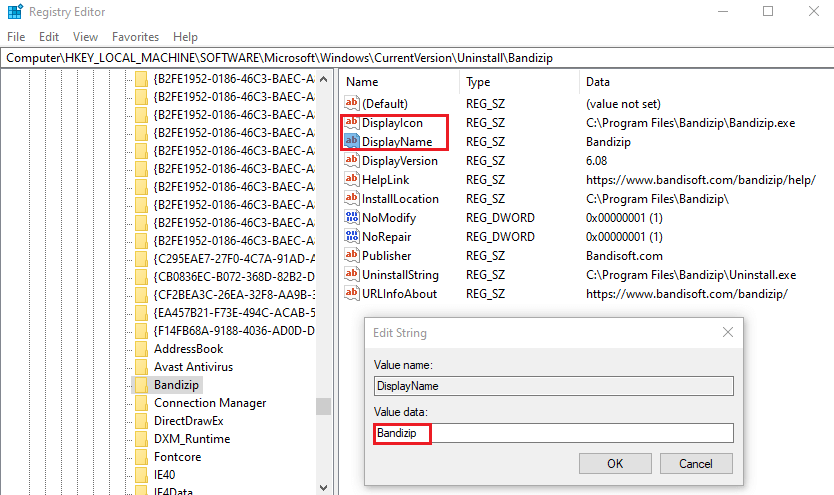
- Head back to Control Panel and the program should now appear, ready to be uninstalled normally.
Wrapping up
Several routes exist for clearing out an app that Control Panel refuses to show. If you want extra confidence that nothing gets left behind, a tool like Revo Uninstaller Pro combines multiple removal methods and can also clean up leftover files and registry entries afterward.

1 Comment
Verkligen toppenprogram, tack