Ever wondered exactly what a factory reset does to a Windows PC? This article breaks down what actually happens under the hood.
If your machine has started feeling sluggish or generally worse over time, restoring Windows to its factory settings is worth considering — in other words, running a factory reset.
What actually happens during a factory reset?
Resetting Windows 10 wipes out everything currently on the machine and returns all settings to their defaults. Sometimes called a system restore, it strips out every installed program, deletes your saved files, and removes any drivers you've added.
A closer look at the reset process
Nearly every device ships with a built-in factory reset option, whether it's a phone, laptop, or tablet. Its job is to wipe the internal storage clean. The name comes from the idea that it returns the device to the state it was in the moment it left the factory floor.
All of your settings revert to their out-of-box defaults. Any software you installed disappears along with its associated data. The apps that originally shipped with Windows 10 get restored to their default state, and you're free to remove them again afterward if you like.
We go into more detail on removing preinstalled Windows 10 apps in our article.
Why a factory reset isn't a complete wipe
No reset process is flawless, and Windows 10's is no exception. In truth, a factory reset doesn't erase everything from the disk — it just makes that data inaccessible through normal means. The bits themselves remain on the drive until new data eventually overwrites them.
That creates a false sense of security. You might assume the files you wanted gone are truly erased, but they can still be sitting there. For genuinely permanent deletion, a tool like Revo Uninstaller Pro and its Unrecoverable Delete feature is the better option.
We go deeper into securely erasing files in this guide.
Before you touch the reset button, there's one crucial step to take first.
Back up your data first
Getting into the habit of regular backups matters a lot when you're planning a Windows 10 factory reset. As mentioned, the reset wipes your files, so backing them up beforehand is essential if you don't want to lose anything important.
Plenty of backup options exist
For photos, documents, and other personal files, a cloud storage service such as Google Drive, Dropbox, or OneDrive works well. These can be configured to sync automatically, and you'll be able to reach your files from any device with an internet connection. Most offer a free tier with a few gigabytes of storage at no cost.
Windows 10's built-in image backup covers the whole drive
To preserve everything on your hard drive exactly as it is, use the Windows 10 system image feature. Store the resulting image on an external drive, especially if you plan to wipe your internal storage afterward.
Here's how to create a full system backup in Windows 10:
- Press Windows Key + S, type Control Panel, and open it
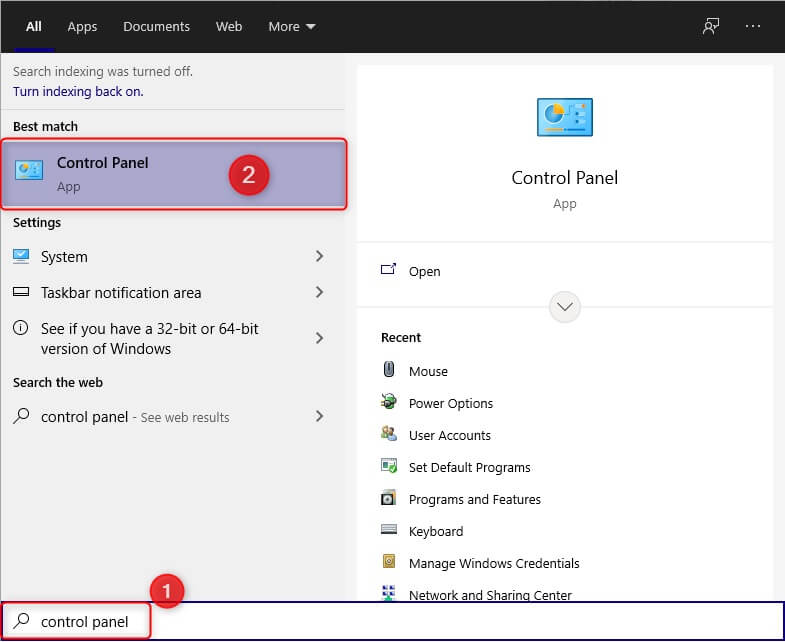
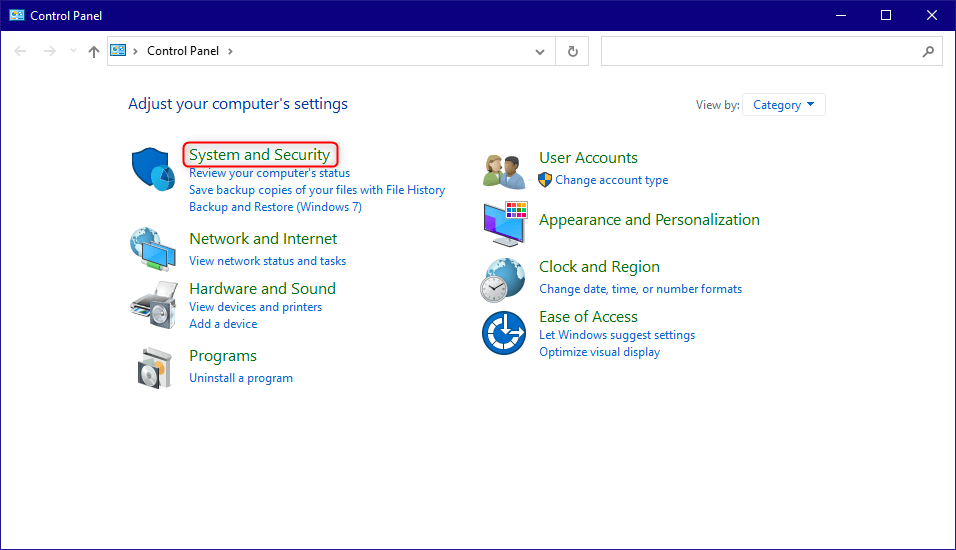
- Double-click "System and Security"
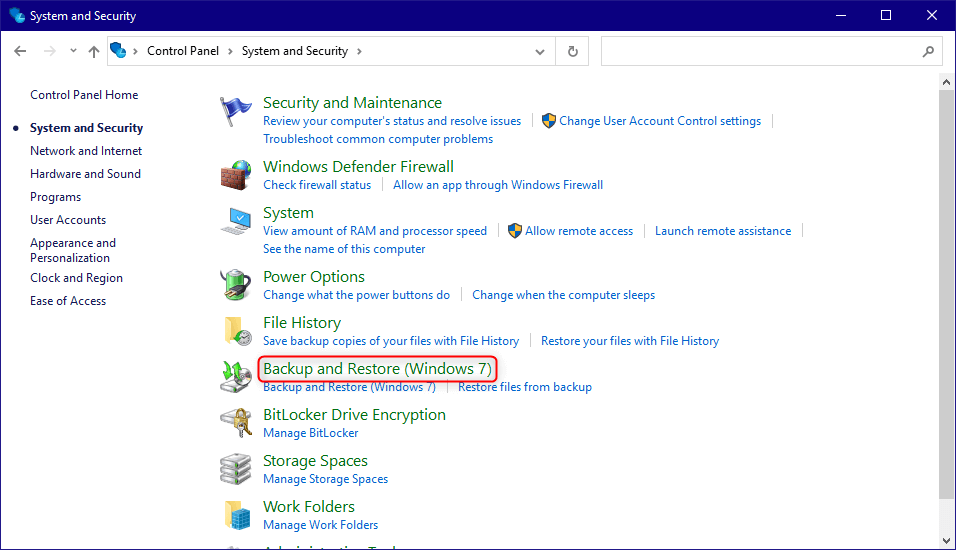
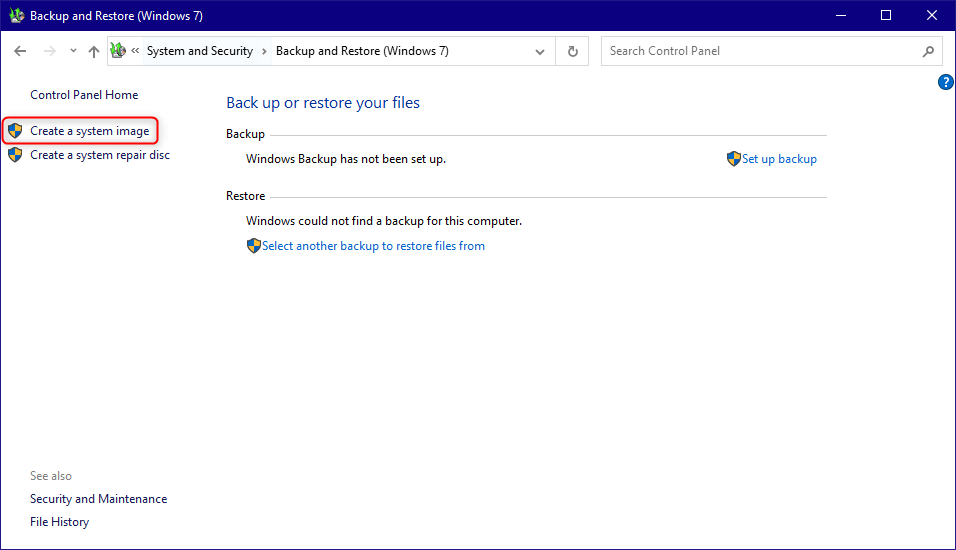
- Select "Backup and Restore (Windows 7)"
- Choose "Create a system image" from the left-hand menu
- Pick where the backup should be stored
- Click "Start Backup"
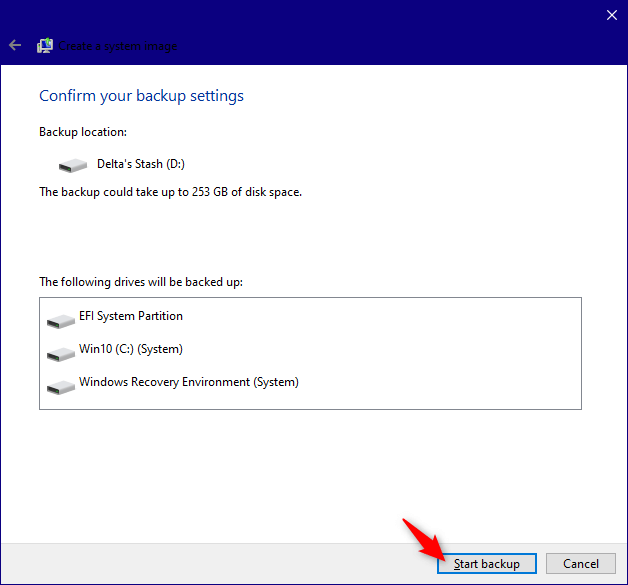
With this image in hand, you can roll your system back to how it was at that point in time, letting you recover files if the factory reset doesn't go smoothly or you accidentally lose something important.
Restoring from your backup
Once the backup exists, here's how to restore your system to that earlier state:
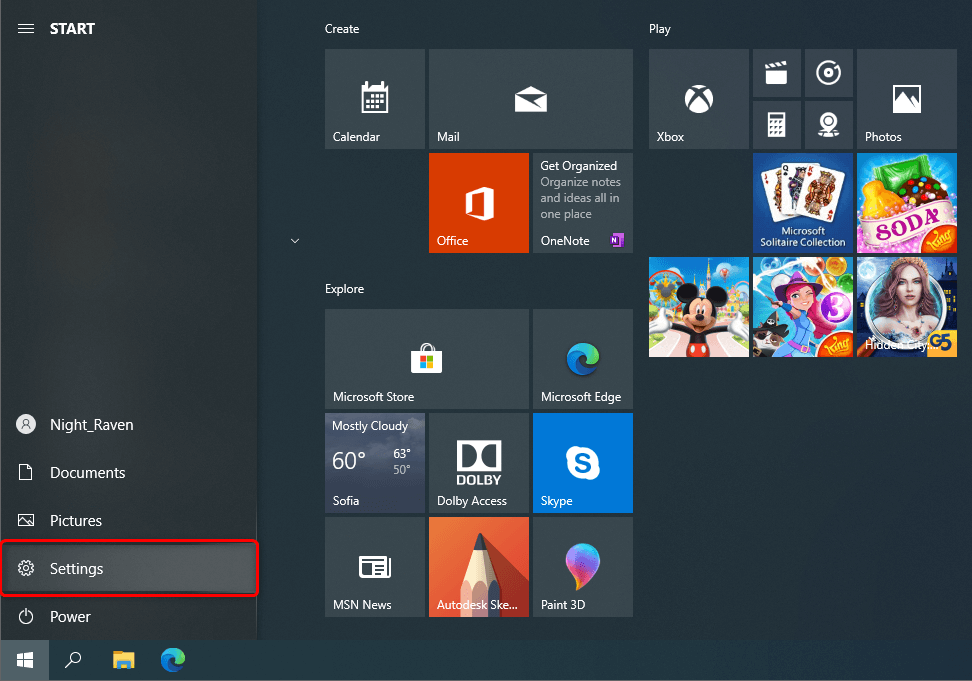
- Open the Start Menu and select Settings
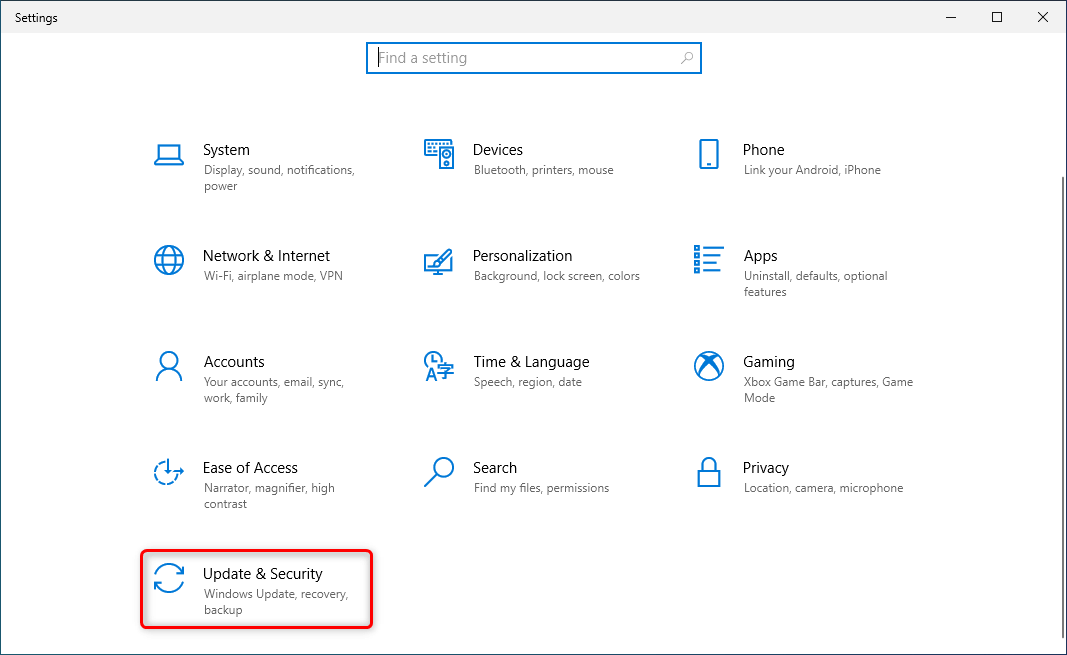
- Select "Update & Security"
- Choose "Recovery" from the left-hand menu.
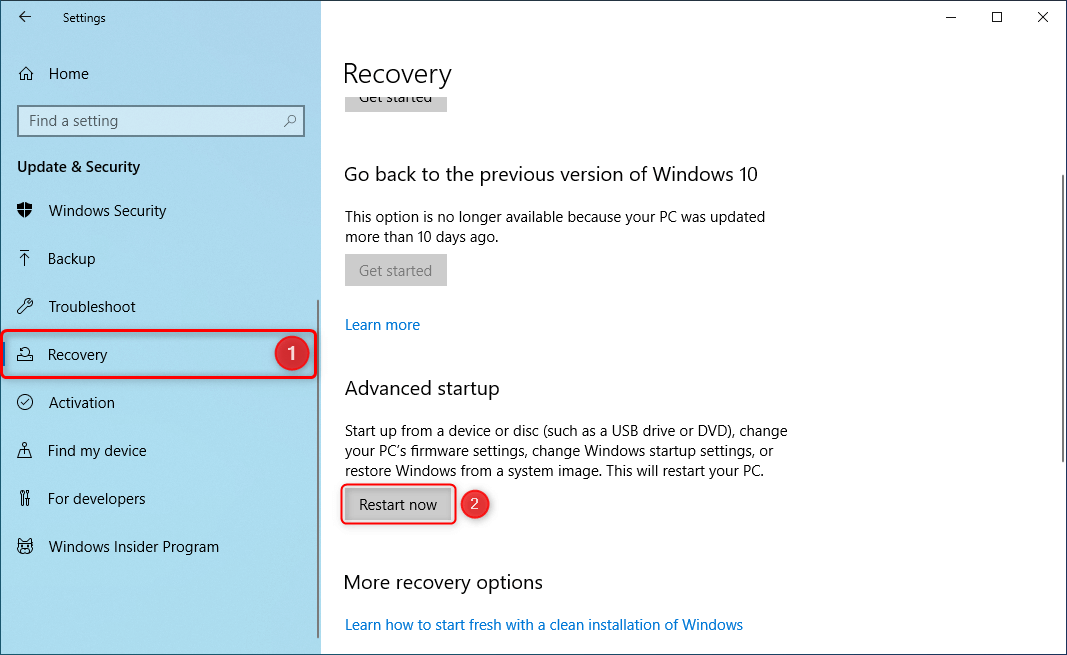
- Under "Advanced startup," click "Restart Now"
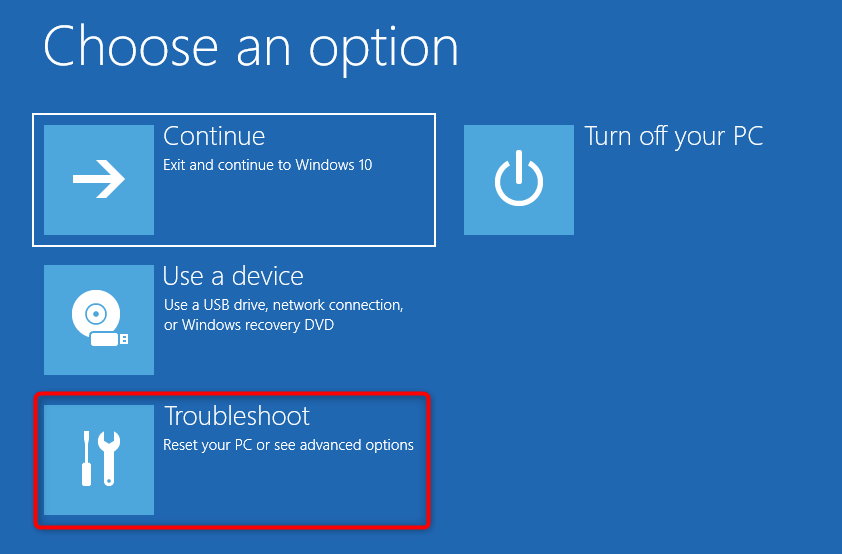
- Select "Troubleshoot"
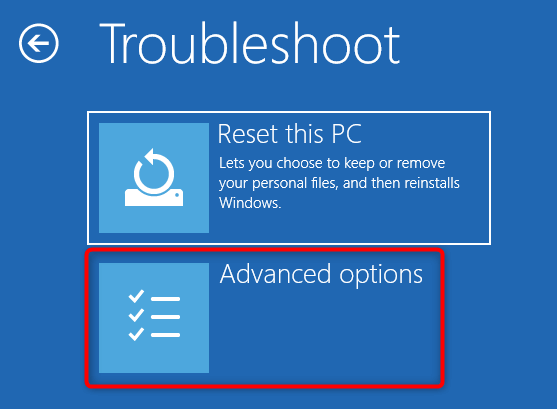
- Go to "Advanced options"
- Click "See more recovery options"
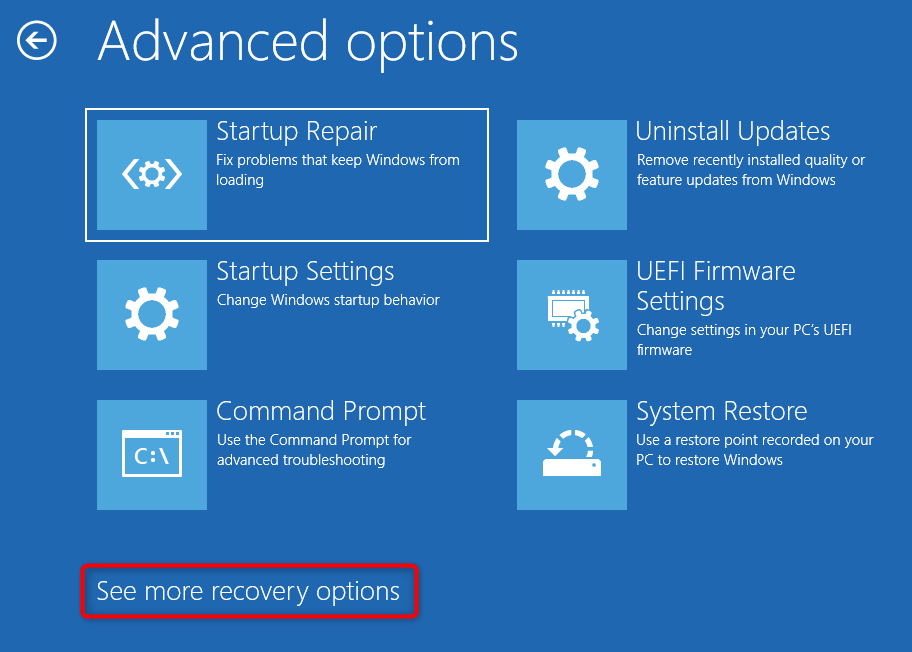
- Choose "System Image Recovery" and follow the prompts to bring your system back to its earlier state through Windows system restore.
Step-by-step: factory resetting Windows 10
Here's a straightforward walkthrough for resetting Windows 10:
- Open the Start Menu and select Settings
- Go to "Update & Security"
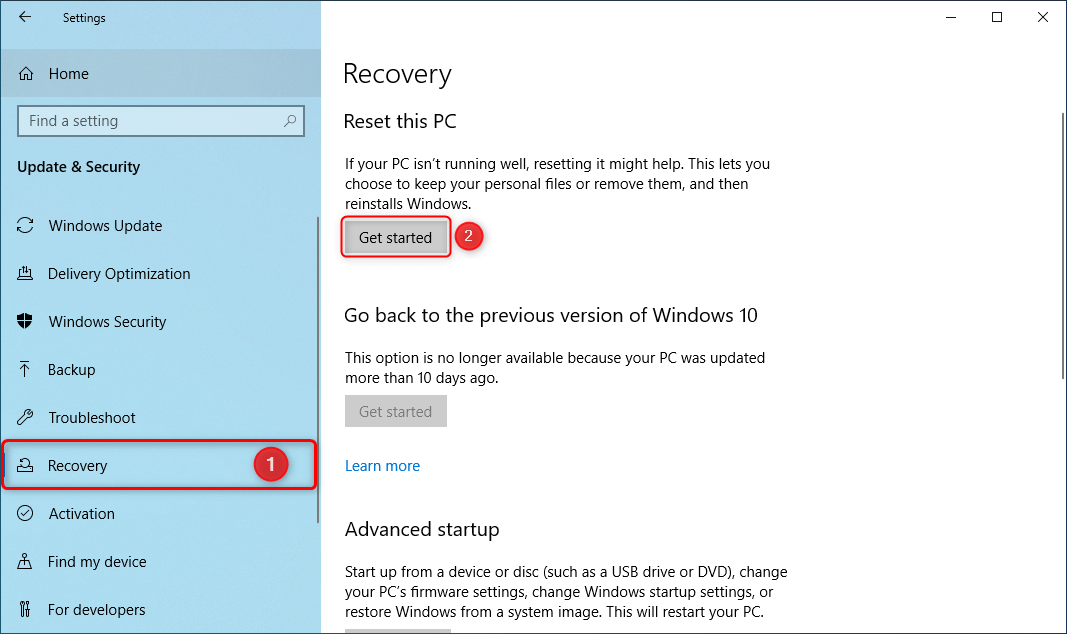
- Select "Recovery" in the left pane.
- Under "Reset," click Get Started
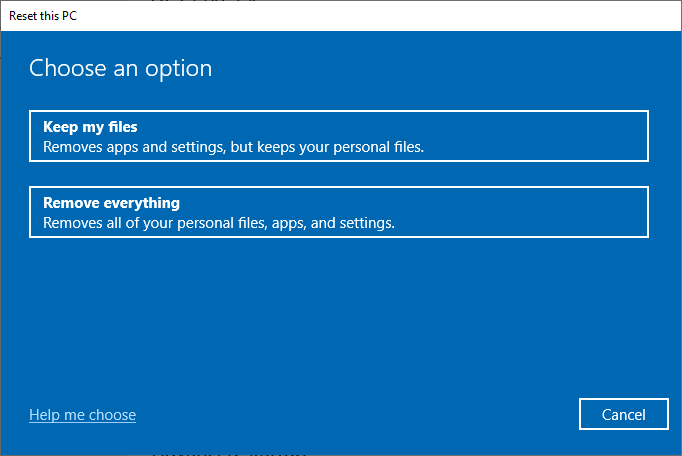
- Decide whether to keep personal files by choosing "Keep my files," or pick "Remove everything" for a full wipe.
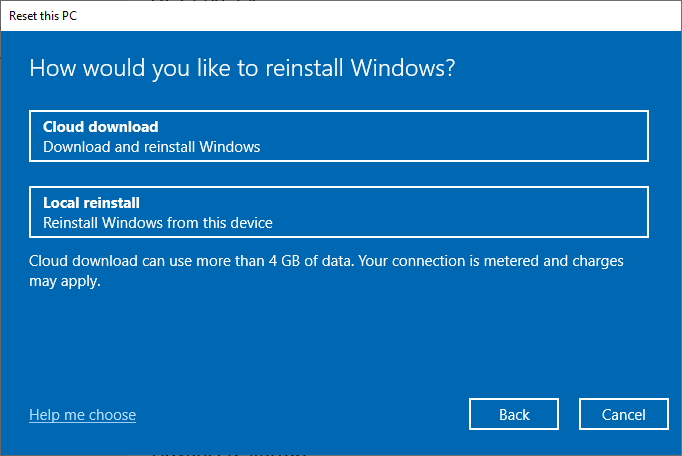
- Next, choose how Windows 10 gets reinstalled. With a fast internet connection, "Cloud download" is a good pick, since it pulls the newest build available.
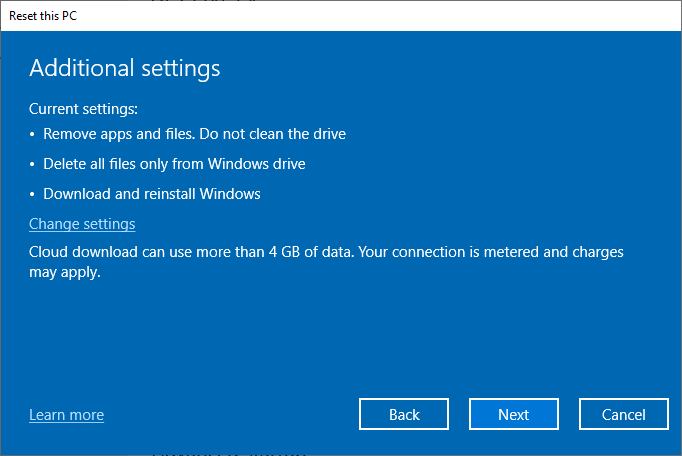
- The Additional Settings screen lets you fine-tune the reset further. Choosing "Remove everything" earlier unlocks a few more options here.
- Under "Ready to reset this PC," click "Reset"
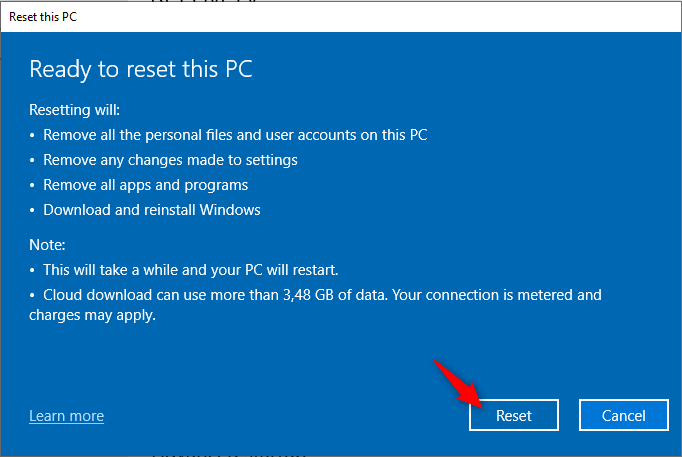
Wiping the drive completely can take a while, so it's often best to kick off the process in the evening and let it run overnight.
Once the reset finishes, you can begin reinstalling your software and restoring the files you backed up earlier.
Final thoughts
Doing a factory reset on Windows 10 every couple of years is a reasonable habit for keeping a system running well. Tools such as Revo Uninstaller Pro can also help afterward by clearing out unused software and disabling startup entries that drag down boot times. Its scanning engine identifies leftover junk files that clutter the system, and using its full feature set can keep your PC running smoothly over the long haul.

1 Comment
Love this program. Been using it for years now. Never had a PC without it.
5 *****