A nearly-full drive can drag down a PC's performance in noticeable ways. As storage fills up with clutter, everyday tasks like browsing the web, streaming video, or checking email start to feel sluggish.
Fortunately, Windows 11 gives you several built-in options for reclaiming space without much effort.
Windows 11 includes tools that automatically or manually clear out temporary data, system leftovers, and other files you no longer need. The system is designed to protect anything important, so you stay in control of what actually gets removed.
How to automatically free up drive space in Windows 11
- Press Win Key + S, search for Storage Settings, and open it.
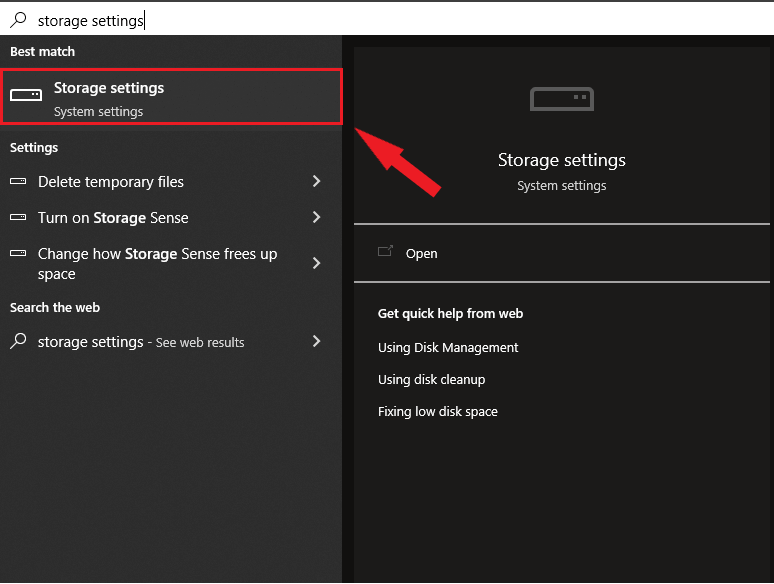
- Select Storage.
The first time you open Storage settings, Windows needs a bit of time to scan your drive. Once finished, you'll see a breakdown of what's taking up space, including temporary files, installed apps, and more.
- Switch on Storage Sense. With this turned on, Windows automatically clears out temporary files, old downloads, and the Recycle Bin whenever free space starts to run low.
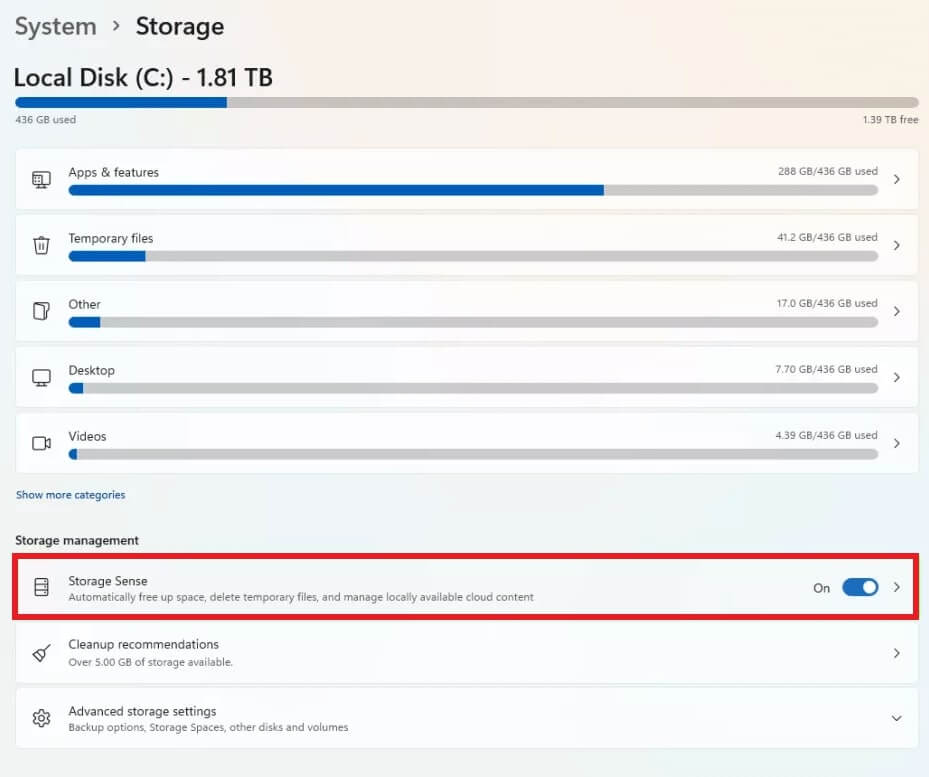
Once Storage Sense is active, you'll notice additional configuration options appear. These let you fine-tune exactly what gets cleaned up, so nothing important is ever removed by mistake.
How to manually clear drive space after upgrading to Windows 11
Disk Cleanup remains a dependable classic for clearing out backup remnants and other temporary files.
- Press Win Key + S to bring up Windows search.
- Type disk cleanup and open the matching result.
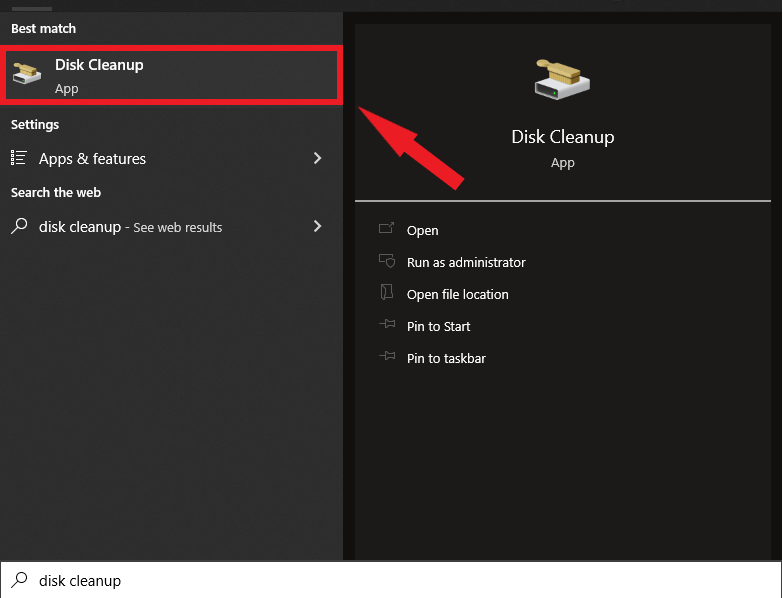
- Choose the drive you want to check. For most users, that's drive C:, where temporary and junk files tend to pile up.
- Click Clean up system files.
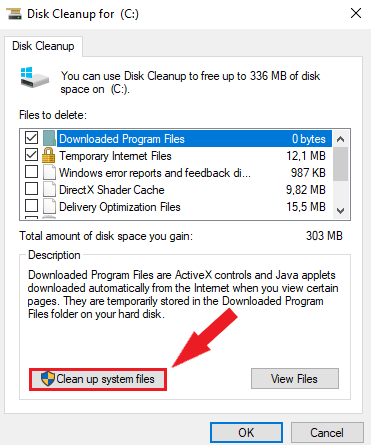
- Pick the same drive again and click OK.
- Check the boxes for Windows Update Cleanup and Previous Windows Installation, if listed.
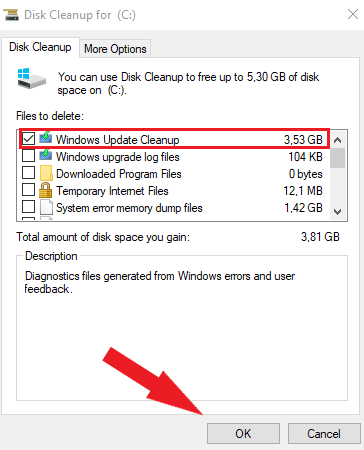
- Click OK, then confirm with Delete Files. Double-check your selections first — once deleted, these files cannot be recovered.
Free up drive space with Revo Uninstaller
Old, forgotten, or rarely used programs are one of the biggest reasons a drive fills up over time.
Revo Uninstaller is third-party software built specifically for removing unwanted applications along with the leftover files and registry entries that a normal uninstall often leaves behind.
For more detail, see our guide on removing programs you no longer use to reclaim storage space.
Summary
A regular cleanup routine goes a long way toward reclaiming wasted storage. Turning on Storage Sense is one of the simplest ways to keep temporary and junk files from quietly eating away at your available space.

No Comments