What triggers the “Something Didn’t Go As Planned” error
Windows 11 users occasionally run into a message that simply reads “Something Didn’t Go As Planned.” It shows up when a task or operation hits an unexpected snag. The message itself doesn’t say much about the root cause, but a handful of common issues tend to be responsible.
Conflicting software
This error often traces back to two or more programs or background services fighting over the same system resources at the same time. Version mismatches or outdated drivers can create the same kind of clash and produce this error.
Damaged system files
Windows 11 depends on a set of core system files to run correctly. When one of those files gets corrupted — from malware, an abrupt shutdown, or a hardware fault — errors like this one can follow.
Hardware trouble
Faulty or mismatched hardware, whether it’s RAM, a hard drive, or a graphics card, can also produce unexpected errors, particularly during demanding tasks or when a driver for that hardware is being accessed.
Not enough system resources
When your PC doesn’t have enough RAM, storage, or CPU headroom to complete a task, errors can pop up. This is more likely when several heavy applications are running together or you’re attempting something resource-intensive.
Update-related bugs
Windows 11 is still evolving, and updates that are meant to fix bugs and improve stability can occasionally introduce new hiccups of their own, including this error during the update process.
How to fix the “Something Didn’t Go As Planned” error
- Restart your PC: A quick reboot resolves a surprising number of software glitches. Click Start, select the Power icon, and choose Restart, then see if the error returns.
- Install the latest Windows updates: Microsoft ships regular fixes for bugs like this. Make sure your system is current.
- Go to Settings and open Windows Update.
- Click “Check for updates.”
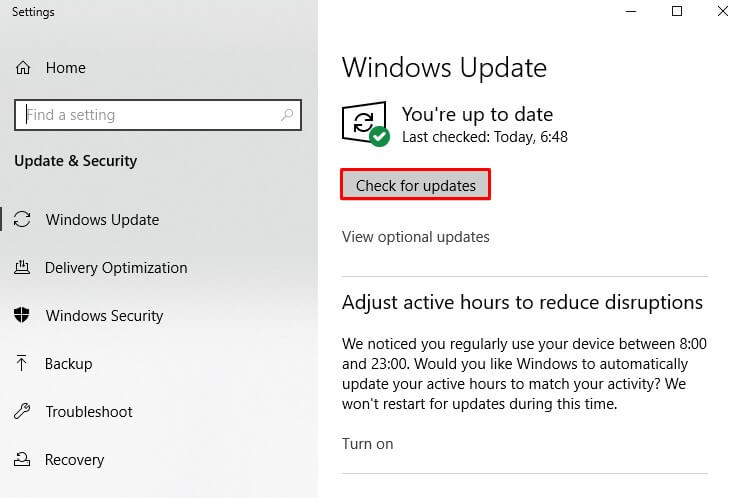
- Download and install anything available.
- Restart if you’re asked to.
- Run the Windows Update Troubleshooter: If updating alone didn’t fix it, try the built-in troubleshooter.
- Open Settings and go to Update & Security.
- Choose Troubleshoot on the left.
- Select Additional Troubleshooters.
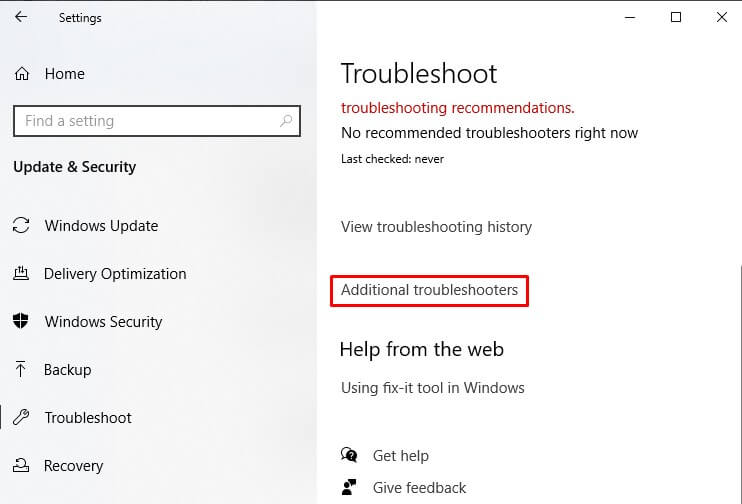
- Pick Windows Update and follow the prompts.
- Confirm your hardware is supported: Windows 11 has minimum hardware requirements, and not every PC meets them. Check your specs against Microsoft’s requirements or run the PC Health Check tool to verify compatibility.
- Try a clean boot: Third-party services and startup apps can conflict with Windows. A clean boot helps isolate whether a non-Microsoft process is behind the error.
- Press Windows + R, type “msconfig,” and press Enter.
- Under the Services tab, check “Hide all Microsoft services.”
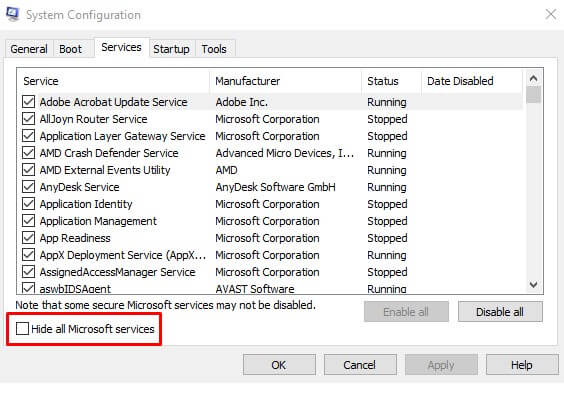
- Click “Disable all,” then switch to the Startup tab and select “Open Task Manager.”
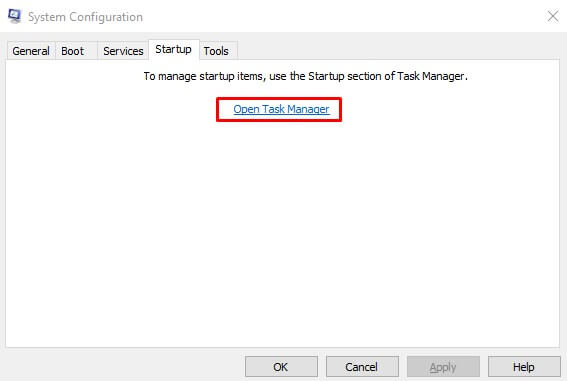
- Disable each startup item individually.
- Restart and check if the error still shows up.
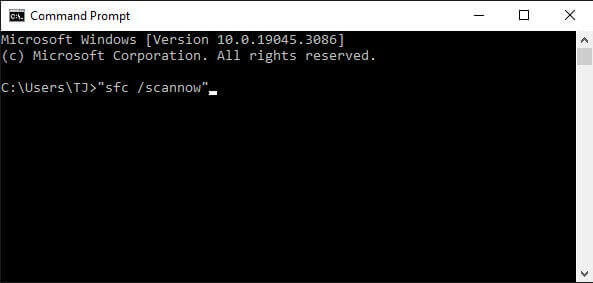
- Run SFC and DISM: Corrupted system files are a frequent cause of errors like this one. Open Command Prompt as administrator and run these commands in order:
- sfc /scannow
- dism /online /cleanup-image /restorehealth
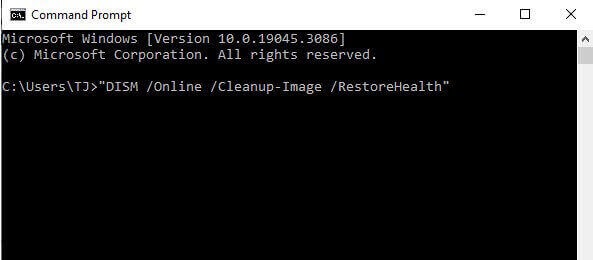
Let each command finish, then restart your PC.
- sfc /scannow
- Use System Restore: If you recently installed new software or drivers right before this error started, rolling back to an earlier point can help. Open Control Panel, go to System and Security, then System. Select “System Protection” on the left, then click “System Restore.” Follow the prompts to roll back to a previous state.
- Reinstall Windows 11: As a last resort, a clean reinstall may be necessary. Back up your files first, then create a bootable USB installer for Windows 11 and follow the setup instructions.
Keep in mind these are general troubleshooting steps, and they won’t necessarily fix every instance of this error. If it persists after trying all of the above, Microsoft support or the Windows community forums can offer more tailored guidance.
Dealing with the “Something Didn’t Go As Planned” error is never pleasant, but working through these steps methodically gives you a solid shot at getting your Windows 11 PC back to normal.

No Comments