Every so often a PC starts feeling sluggish or runs into a technical snag that's tough to pin down. When that happens, it's worth knowing how to factory reset Windows 11.
This route is far less drastic than wiping the drive and installing Windows from scratch. Fortunately, both Windows 10 and Windows 11 include a built-in reset tool that makes the whole thing much simpler.
What actually happens during a factory reset?
Resetting your PC returns it to the same state it was in when it left the factory. If it was a pre-built machine, that means it'll look just like it did fresh out of the box — bloatware included.
You'll need to make one key decision along the way:
Keep your personal files while reinstalling Windows, or wipe everything and start completely clean?
Choosing "Keep my Files" leaves most of what's in your user folders untouched.
Even so, this process is generally reliable, but backing up anything important beforehand is still a smart move.
How to factory reset Windows 11
- Open the Start Menu and go to "Settings".
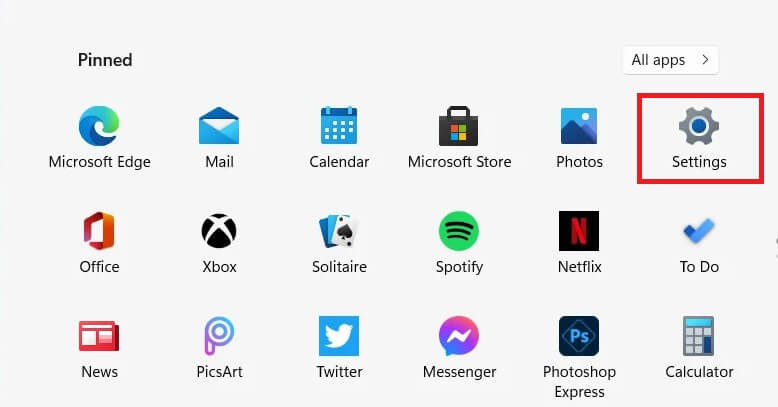
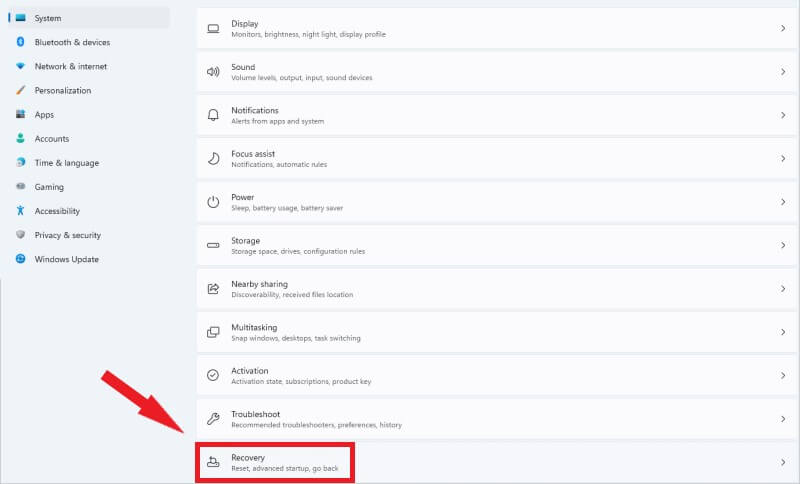
- Click "System".
- Select "Recovery".
- Find "Reset This PC" and click the "Reset PC" button beside it.
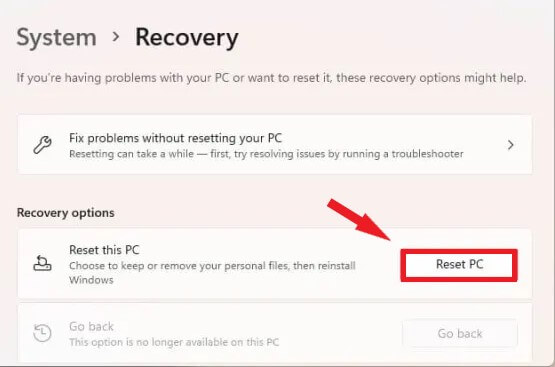
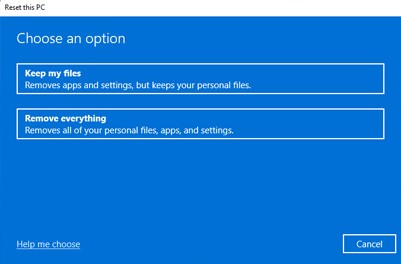
A dialog will ask whether you want to keep your personal files or erase everything.
Next, you'll choose whether to reinstall Windows 11 from the cloud or from files already stored on your PC.
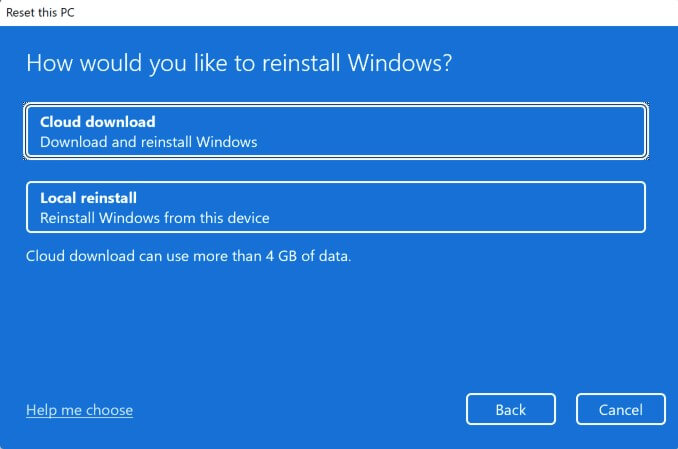
If you're resetting because something seems corrupted or is misbehaving, go with the cloud option — it pulls a clean copy of Windows straight from Microsoft's servers, so any damaged files get fully replaced.
If you're really just trying to declutter or speed things up, the local install works fine. It rebuilds Windows using files already stored on your drive.
From there, just wait while Windows downloads and reinstalls its files. Once it's done, you can sign back in and pick up where you left off.

No Comments