PowerShell is Microsoft's task-automation framework, and knowing which version is installed on your machine tells you exactly which features are at your disposal. With well over 200 built-in commands, it's a flexible tool that can save considerable time once you get comfortable with it.
Does PowerShell only run on Windows?
Not anymore. Microsoft made PowerShell open-source and cross-platform back in 2016, so it also runs on macOS and Linux. Windows PowerShell remains the version built into Windows and only gets security patches and bug fixes at this point, while PowerShell Core (now just called PowerShell) continues receiving active development for all supported platforms.
Why does the version you're running matter?
PowerShell has gone through many releases since version 1.0 launched back in 2006. The current major release, version 7, brings several notable additions:
- Parallel execution through the Parallel switch on the ForEach-Object cmdlet
- A redesigned error view along with the Get-Error cmdlet
- Better compatibility with modules built for Windows PowerShell
- Ternary expressions using the ?: operator and null-coalescing with ??
The point here is that PowerShell versions differ enough that it's worth knowing which one you're on. Since plenty of people aren't sure how to check, here's a short guide covering a few different ways.
How do I find out which PowerShell version is installed?
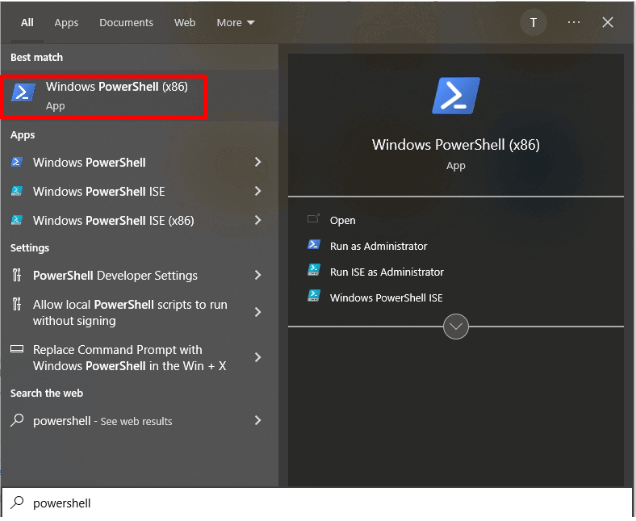
Start by opening PowerShell itself. Open the Start menu, type PowerShell into the search box, and click the app when it appears.
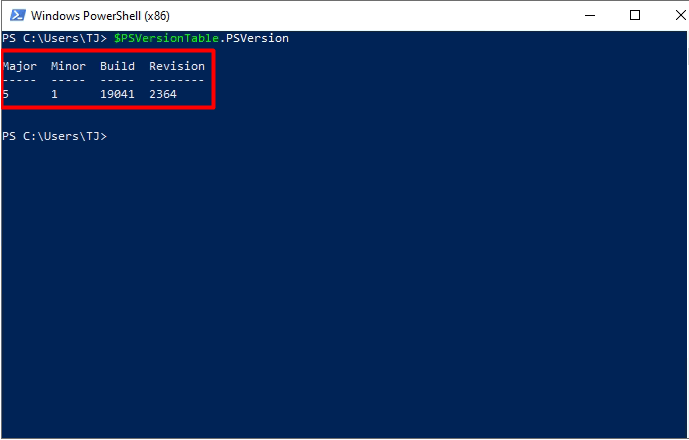
Once the console window opens, type $PSVersionTable.PSVersion and press Enter. The screenshot below shows what that output looks like, including where the version number appears.
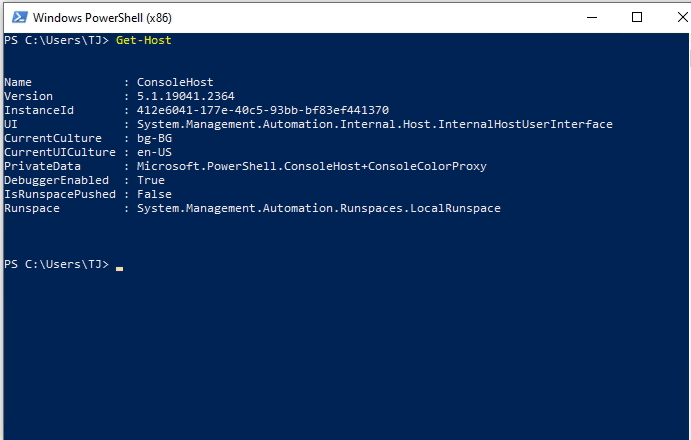
You can also run the "Get-Host" command to reach the same information from a different angle.
One more option is the command "$host.version," which displays the version number in a slightly different layout, breaking it down into major and minor release numbers plus build and revision details.
How do I upgrade to a newer PowerShell release?
Windows PowerShell and PowerShell 7.2 can coexist on the same machine, so upgrading doesn't mean losing anything — just keep your existing Windows PowerShell installation in place and add the newer version alongside it. Grab the installer from the GitHub release page, where you'll find a list of downloads; just pick the one that matches your operating system.
Conclusion
PowerShell can take a lot of the repetitive work off your plate once you know how to use it. Knowing which version you have installed, and how to move to a newer one, means you'll always be able to take advantage of whatever features it offers.

No Comments