
Locking your Windows computer is the simplest way to protect it whenever you step away from your desk. Nothing running on the machine gets closed or interrupted — you'll just need your PIN or password again to get back in. Below are five different ways to lock your PC.
Here's a rundown of each method:
I. Locking Windows 11 through the Start menu
- Click the "Start" button in the lower-left corner of the taskbar, or tap the "Windows" key on your keyboard, to bring up the Start menu.
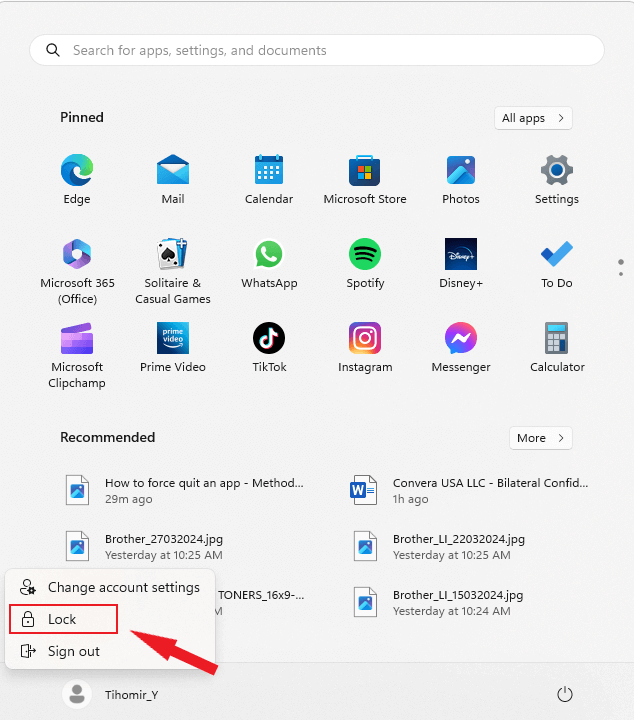
- Click your account icon or name at the top of the Start menu.
- A small menu will pop up with a few options. Choose "Lock" from that list.
- Or skip the menu entirely and press "Windows" + "L" for an instant lock.

II. Locking your PC using Task Manager
- Right-click anywhere on the taskbar to bring up its context menu.
- Choose "Task Manager" from that menu, or just press Ctrl + Shift + Esc to jump straight there.
- With Task Manager open, click "File" in the upper-left corner.
- Select "App History"
- Then choose "Run new task" from the dropdown.
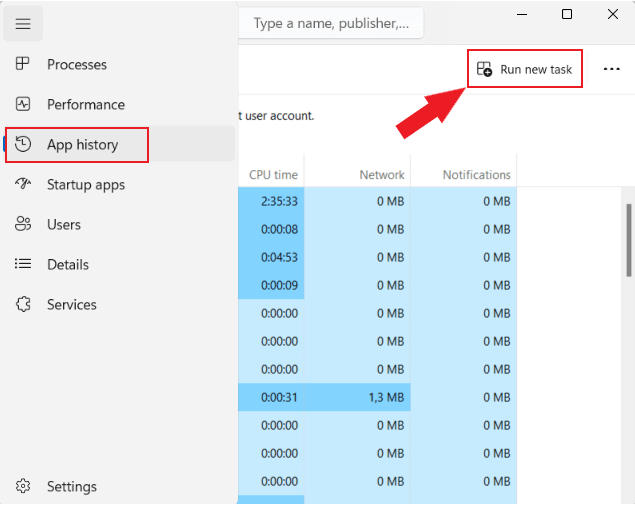
- In the "Create new task" box, type "tsdiscon" (shorthand for "Terminal Services Disconnect").
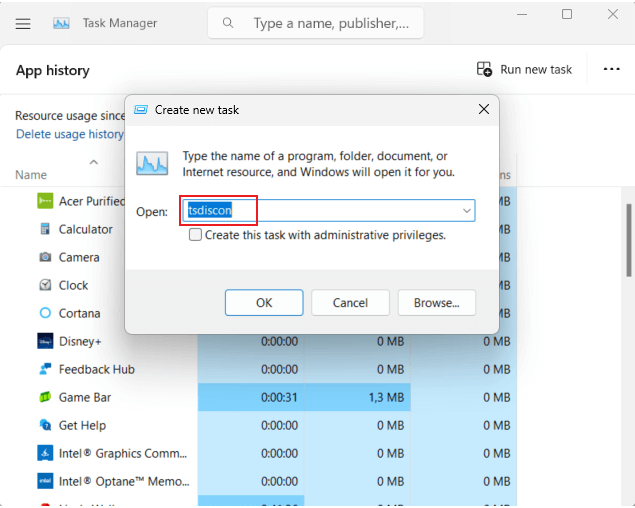
- Tick the box for "Create this task with administrative privileges."
- Click "OK".


III. Locking Windows 11 with the Ctrl + Alt + Delete screen
Pressing Ctrl + Alt + Delete brings up a special Windows screen with several options, including switching accounts, changing your password, and — most relevant here — locking the machine. Just click "Lock" from that screen and your device is secured right away.
IV. Locking your PC from Command Prompt
You can also trigger a lock through Command Prompt, the text-based interface for entering commands directly.
Open the Start menu, search for "Command Prompt," and open the top result. Once the window appears, type the following and press Enter:
Rundll32.exe user32.dll,LockWorkStation
V. Setting up Dynamic Lock
Dynamic Lock adds a hands-free layer of protection by locking your PC automatically once you walk away. It works by tracking the signal from a paired Bluetooth device — when that device moves out of range, Windows assumes you've left and locks itself. Here's how to turn it on:
- Pair a Bluetooth device: Make sure your phone, wearable, or another Bluetooth accessory is already paired with your Windows 11 PC.
- Open Settings: Click Start, then choose Settings (the gear icon).
- Go to Accounts: Select Accounts from the Settings menu.
- Open Sign-in options: Pick Sign-in options from the sidebar.
- Turn on Dynamic Lock: Scroll to the Dynamic Lock section and flip the toggle on.
- Add your device: Click "Add a device" and follow the prompts to pair it, if you haven't already.
Once it's configured, Windows will lock itself as soon as your paired Bluetooth device drifts out of range, giving you an extra safety net for moments you forget to lock up manually.
When it comes to keeping your system secure, you are the first and most important safeguard. Which method you use to lock your PC matters less than making a habit of actually doing it — and setting up an automatic lock helps cover the times you forget.

No Comments